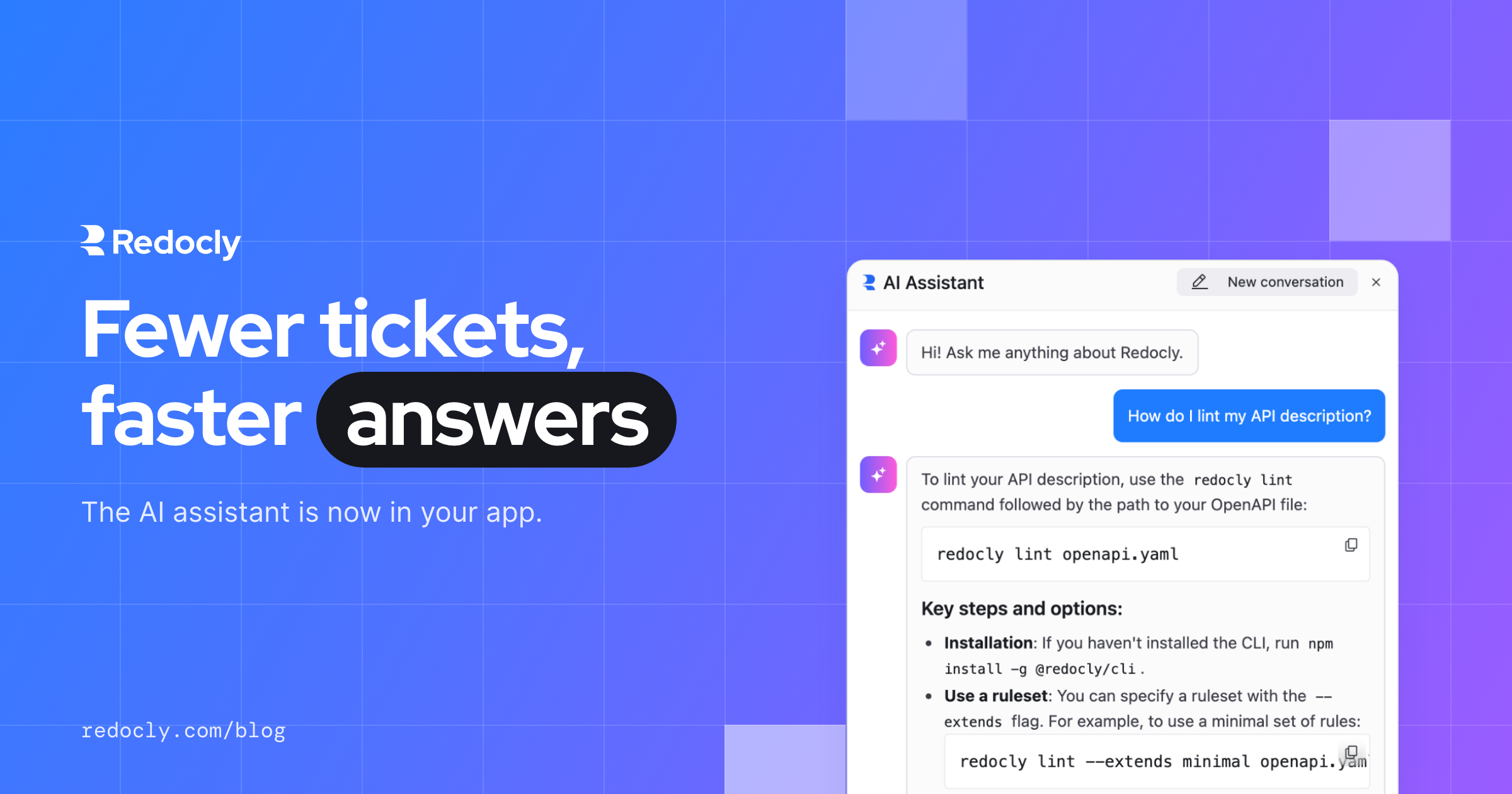
Redocly docs come with an AI assistant that reads your content and answers questions, citing the pages it used. It works well, with one catch: it lives in your docs, and most of your users don't.
They spend their day in your app, your dashboard, and your support portal. That's where they get stuck, and that's where their questions come up. Every detour to the docs is another chance for them to give up, or to file a ticket that your team has to answer by hand.
Our fix: bring the assistant to them. Today, the AI assistant web component is generally available.
The assistant below is live and answers from the Redocly docs, so go ahead and ask it something. Then make it yours: move it around, change the colors, give it a new name, and watch the preview keep up.
Install AI assistant
- 1
Enter the URL of your Redocly project.
- 2
Copy the snippet to your site.
index.html<script src="https://cdn.redocly.com/ai-assistant/releases/latest/main.js"></script> <redocly-ai-assistant api-url="https://your-project.com" color-mode="light" welcome-message="Hi! Ask me anything about these docs." suggestions='["How do I get started?","How do I authenticate?"]' ></redocly-ai-assistant>
Two lines bring your docs' AI assistant into your app:
<script src="https://cdn.redocly.com/ai-assistant/releases/latest/main.js"></script>
<redocly-ai-assistant api-url="https://docs.acme.com"></redocly-ai-assistant>
Reload, and your app has an Ask AI button in the corner. There's no second chatbot to train and no second index to keep in sync, because the assistant answers from the content you already publish. Whenever you deploy new docs, the assistant picks them up right away.
Because it's a standard HTML element, it drops into React, Vue, server-rendered pages, or anything else that renders HTML. It also keeps to itself: your styles won't break it, and its styles won't leak into your page.
An assistant inside your app speaks for your product, and that's a much higher bar than a search box on a docs site. These are the things we refused to ship without.
Every answer cites its sources. Replies link to the pages they drew from, so users can check the details, and you can always trace what the assistant said back to your docs.
Your brand, not ours. Pick a small popover in the corner, a centered dialog, or a full-height side panel, with more layouts on the way. The assistant picks up your colors, your fonts, and light or dark mode, speaks 14 languages, and lets you rewrite any piece of its text. Keyboard and screen reader support is built in, because everyone should be able to use your product.
Answers that match what each user can see. Not every page is public. When someone signs in to your app, your backend can pass along an identity token, and the assistant also answers from the pages that person is allowed to read.
Answers that fit where the user is. Someone on your Payments screen wants Payments answers, for the API version they actually run. Tell the assistant where the user is, and it answers only from those docs:
window.RedoclyAssistant.setConfig({
  product: 'Payments',
  version: { folder: 'v2', label: '2.0' },
});
Your app can start the conversation. Say a test payment in your app fails with card_declined. Your app knows the moment it happens. One line in your error handler opens the assistant with the question already asked:
window.RedoclyAssistant.ask('What does the error "card_declined" mean?');
No need to search or type. The answer is waiting right next to the error.
Your code hears every conversation. The assistant reports what happens as events on the page: a question asked, an answer finished, a thumbs up or down, an error. Listen to them and run your own code. Send questions to your analytics, flag poorly rated answers in your help desk, or show your own fallback when a question fails:
window.addEventListener('redocly-assistant:response', (event) => {
  const { question, conversationId } = event.detail;
  analytics.track('Assistant answered', { question, conversationId });
});

window.addEventListener('redocly-assistant:feedback', (event) => {
  if (event.detail.feedback === 'dislike') {
    helpDesk.flagAnswer(event.detail.messageId, event.detail.reason);
  }
});
The assistant also reports when it opens and closes, when a question fails, and when a conversation starts over. The reference lists every event and what it carries.
Sometimes the docs simply don't cover it. A good support agent knows when to hand off, and so does the assistant.
Turn on Contact support in your project settings, and the assistant offers a way to reach your team:
- after a few questions, three by default
- when it can't answer, or when the user asks for a person, if you turn on Offer support automatically
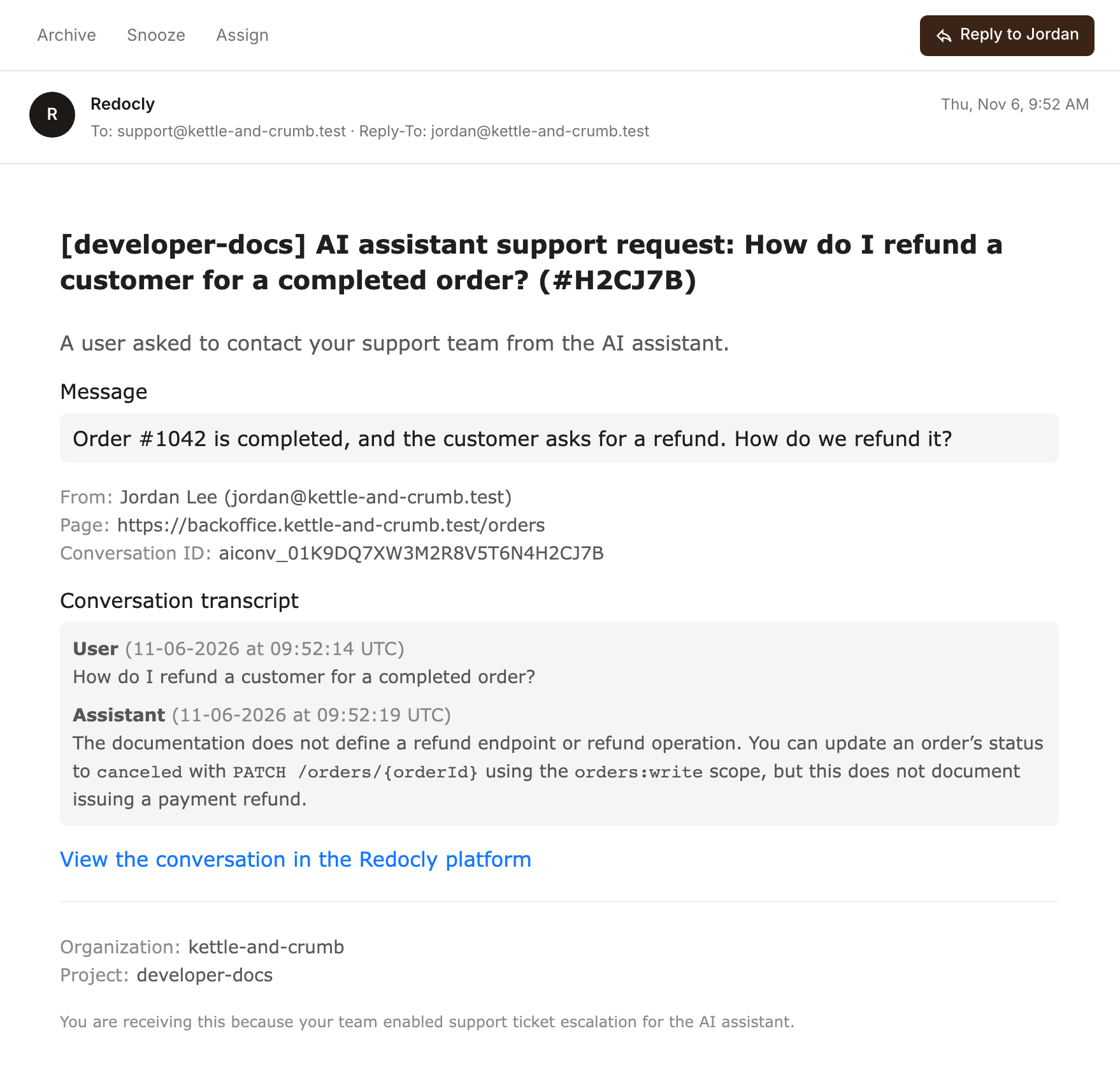
The user leaves their email and a note without leaving your app. Your team gets an email with the request, the page the user was on, and the full conversation, so nobody has to ask the user to start over. Hit reply, and your answer goes straight to the user.
If your docs already have the AI assistant, the AI Assistant conversations page in Redocly lists every question users asked and how they rated each answer. Questions from the web component show up in the same place, so you also see what users ask while they're working in your app. This page becomes a running list of what your users are looking for, in their own words, and the poorly rated questions point straight at what's missing or unclear in your docs.
Your docs stop being the place users go when they're desperate. They become something users can talk to without leaving your app, and something that tells you how to get better.
We're not done yet. Two things are next:
- Your app's context in every question. Pass along what the user is looking at, such as the current screen, their plan, or the error they just hit, and the assistant takes it into account without the user having to explain.
- Tools that act in your app. Give the assistant your own tools, so it can do things for the user, like opening the right page, instead of only explaining how.
The AI assistant web component is available on the Scale and Enterprise plans. Allow your app's domain in the project settings, redeploy, and paste the snippet from the playground.
- Setup guide: every step, from allowing your domain to pasting the snippet.
- Reference: every attribute you can set.
- Changelog: each new version and its changes.
Your docs already have the answers. Now your users can ask for them right where they need them.