The Redocly platform supports creating, editing, previewing, and deploying API documentation projects with a Git-based workflow. You can use the editor to add, edit, and delete content and files in your project, and Git tracks and manages every change.
You can also keep your content in a Git hosting provider of your choice and work docs-as-code by connecting a git content source. This page describes the hosted workflow.
The platform includes an Editor page where you can add and delete files and edit content within files. You can also view live previews of your changes as you make them.
The editor includes the following areas:
- A file tree pane where you can view all files included in your project, even remote and static files. You can collapse this pane to give the editor more space.
- An editor pane where files open as tabs. You can split tabs into groups and rearrange them to fit your workflow.
- Utility tabs that open alongside your file tabs in the editor dock. They include the Webview live preview for previewing your formatting updates as you add them.
The changes you make in the editor reach your published project through a Git-based workflow. Git is a version control system for tracking and managing changes, and it is built into Redocly.
The platform uses Git for version control, either with a connected remote provider or a repository that Redocly provides. The changes you make in the editor reach your published project through a Git-based workflow.
What is a Git-based workflow?
The Git-based workflow includes the following steps:
- Before making changes in your project, create a new development branch.
- After making updates, commit your changes to save them to your branch.
- Open a pull request to have your committed changes reviewed by others.
- When the pull request has been approved, it can be merged to the main project.
Before making updates to your project, create a new development branch. Do this before each set of changes that you make. You can make changes to the project on a development branch without affecting the production project, or main branch.
All new branches are based on the main branch. You can switch between branches if you have changes on multiple branches.
To include changes in your development branch in a preview deployment, you must commit those changes. You can choose to include all of your changes, or only select some of your changes. You can also revert all or any number of your changes, before committing.
After your first commit to a new development branch, you can open a draft pull request. All subsequent commits to that branch are added to the pull request until it is closed or merged.
When a pull request is merged, the branch is deleted automatically.
The Pull requests page is where you manage your open and closed pull requests.
Pull requests are the first step in merging updates from a development branch with the main, or production, branch. If you want changes from a development branch to be added to the production project, you must merge the pull request with those changes.
On the Pull requests page, you can view, make comments, invite reviewers, request changes, or approve pull requests. You can also check the build status to see if your pull request has any issues like broken links or syntax issues.
A deployment is the result of a successful build of your project. There are two types of deployments:
- A Production deployment is triggered each time you merge a pull request to the default branch (usually main) or commit directly to the default branch.
- A Preview deployment is triggered when you make a commit to a development branch and open a pull request (PR). Or if you have a PR opened, the preview deployment is triggered when you make another commit to the development branch.
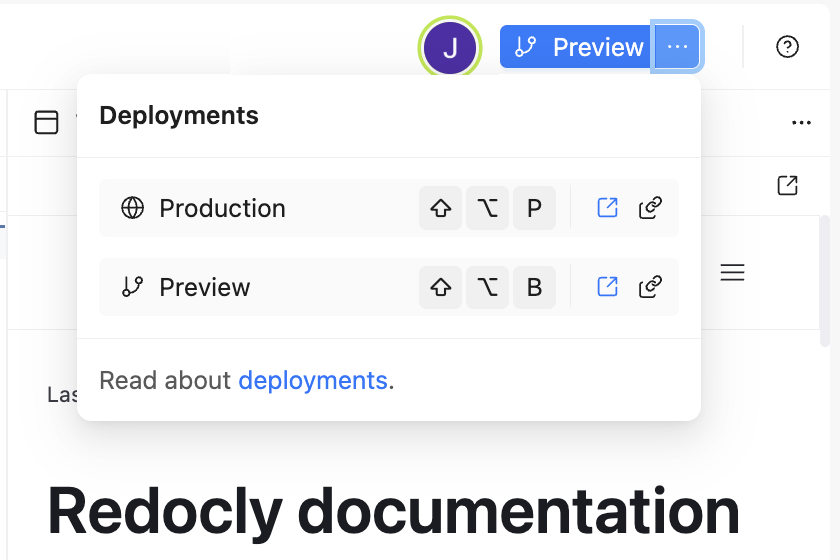
When a deployment is successful, you can view the deployment build. Click the Production or Preview button in the top right corner of the page. When a deployment isn't finished, you are redirected to the deployment details page. Also, you can open a menu that displays all available deployments. The menu also has shortcuts to those deployments, a direct link to the deployment, and a copy link button.
To see more information about deployments, you can visit the Deployments page.
In the editor, you can add content to your project from external sources like hosted Git repositories, CI/CD platforms, or URLs. This content is represented in the file tree of the editor with a cloud icon to indicate it is connected to a remote source. You can view, edit, or sync the remote content in your project on the Remote content page.
By default, every page of your published project includes a feedback mechanism that can be used to collect data from your users. Also, all code snippets by default include a report icon that users can click to report an error or issue with the code sample. These feedback mechanisms can be configured in your redocly.yaml file and the data they collect can be viewed and exported on the Feedback page.
Most aspects of your project are configured in your redocly.yaml configuration file, but a few things are configured on the Settings page. From the Settings page, you can view your Project ID, edit your Project name, and delete a project. You can also set a custom domain, add environment variables, and connect a Git repository from a remote provider like GitHub, GitLab, or Azure DevOps.
- Feedback configuration - Configure user feedback collection in your redocly.yaml file and view the collected feedback
- Manage projects - Explore different ways to organize, configure, and manage projects for optimal workflow
- Open a pull request - Complete guide to pull request creation, review, and management processes
- Remote content - Learn about remote content features including mount folder paths, auto-sync, and auto-merge capabilities
- Deployment configuration reference - Configure deployment settings including options to deploy regardless of link checker or Markdoc errors
- Project interface - Reference the user interface elements in the project workspace